
When you sign up or your MFA is reset, you will be prompted to set up multi-factor authentication (MFA) in DAT One Web or DAT One Mobile.
MFA adds an extra layer of protection by requiring a verification code from your phone in addition to your password.
Step 1 – Download the Microsoft Authenticator App
Before continuing, install the Microsoft Authenticator app on your phone.
Android (Google Play):

iOS (App Store):

Step 2 – Begin MFA Setup in DAT One
- Log in to DAT Onefrom your computer or mobile browser.
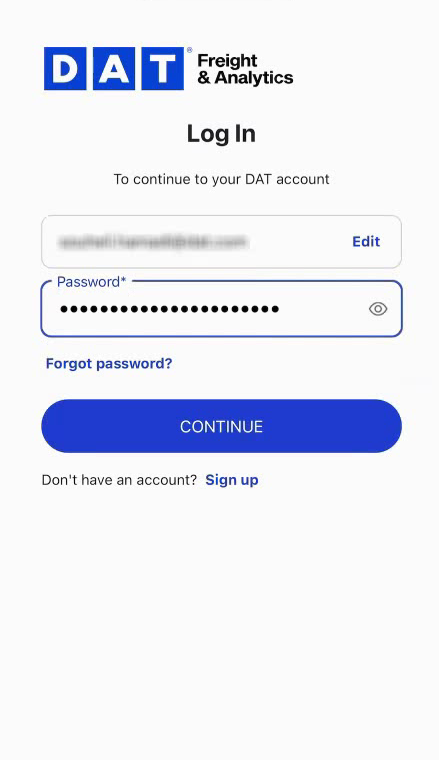
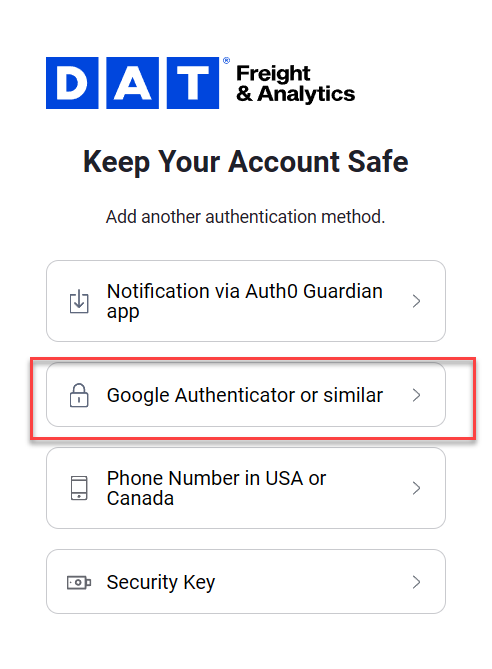
- When prompted, choose to set up your authenticator app.
- A QR code will appear on the screen.
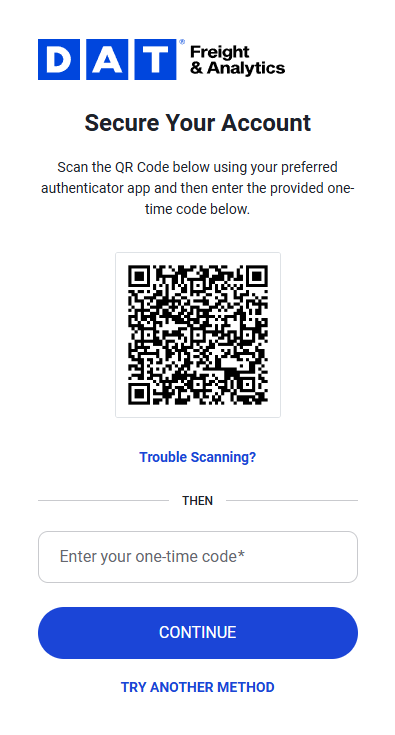
You can connect Microsoft Authenticator using either option below.
Option A – Scan the QR Code
- Open the Microsoft Authenticator app on your phone.
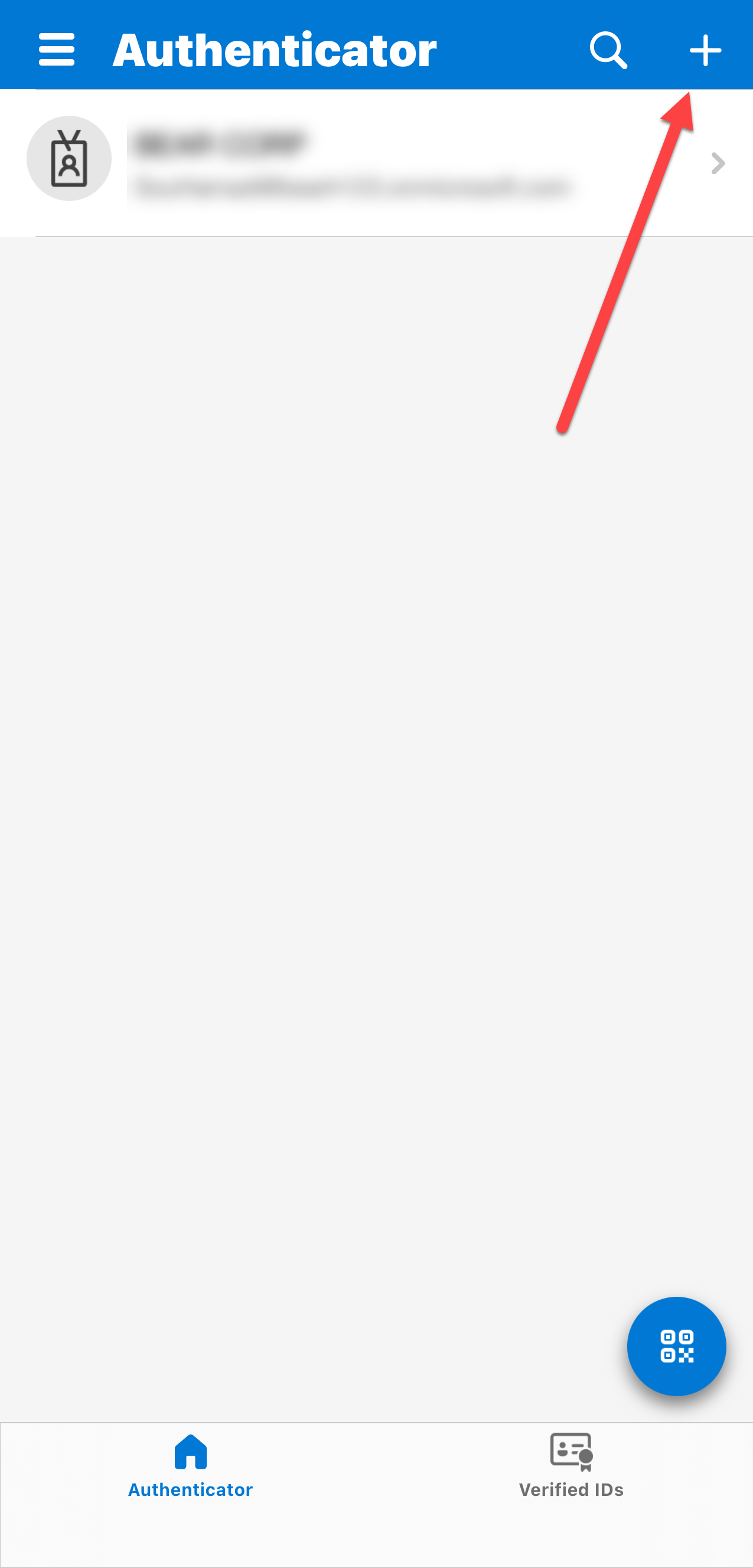
- Tap +(Add account).
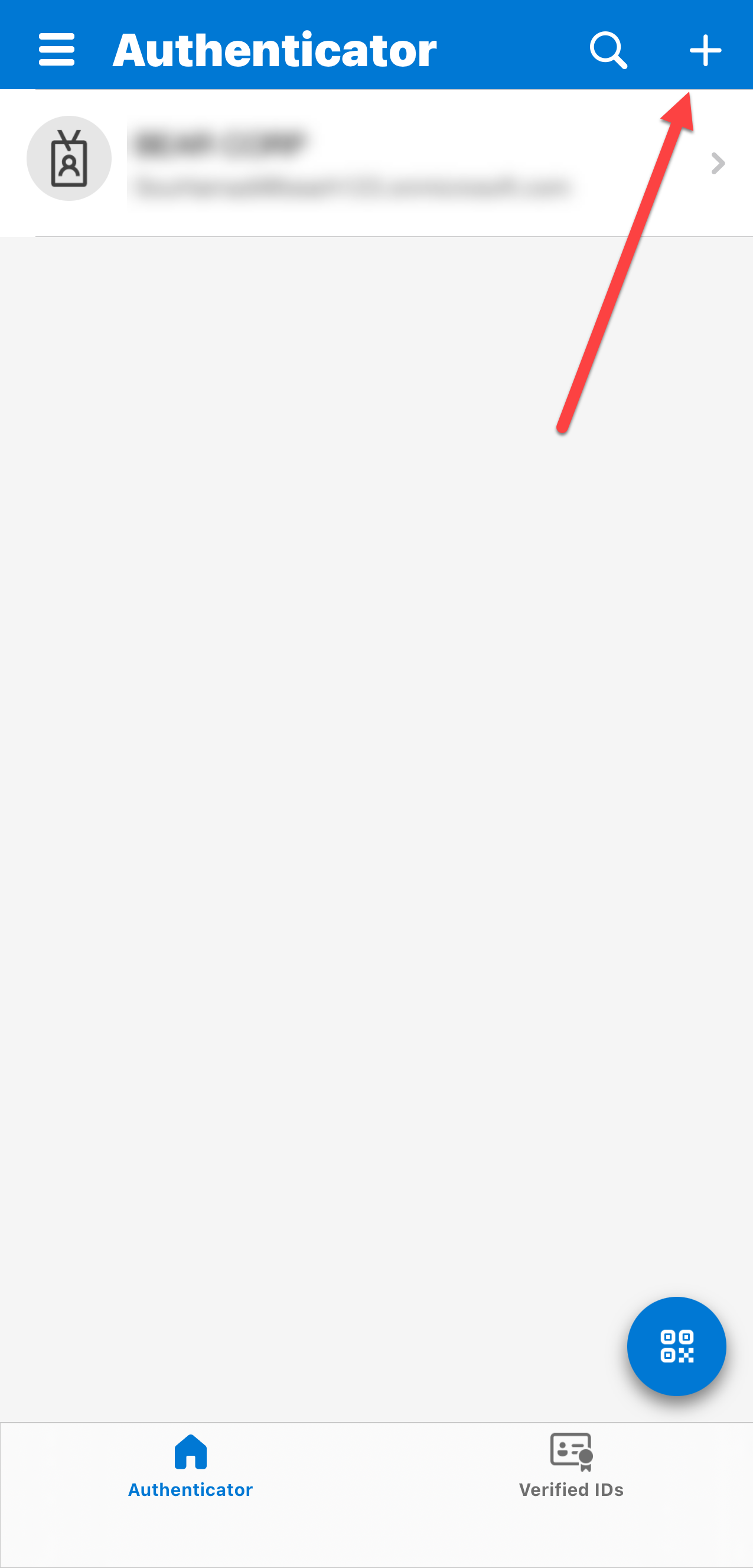
- Select Work or school account or Other account.
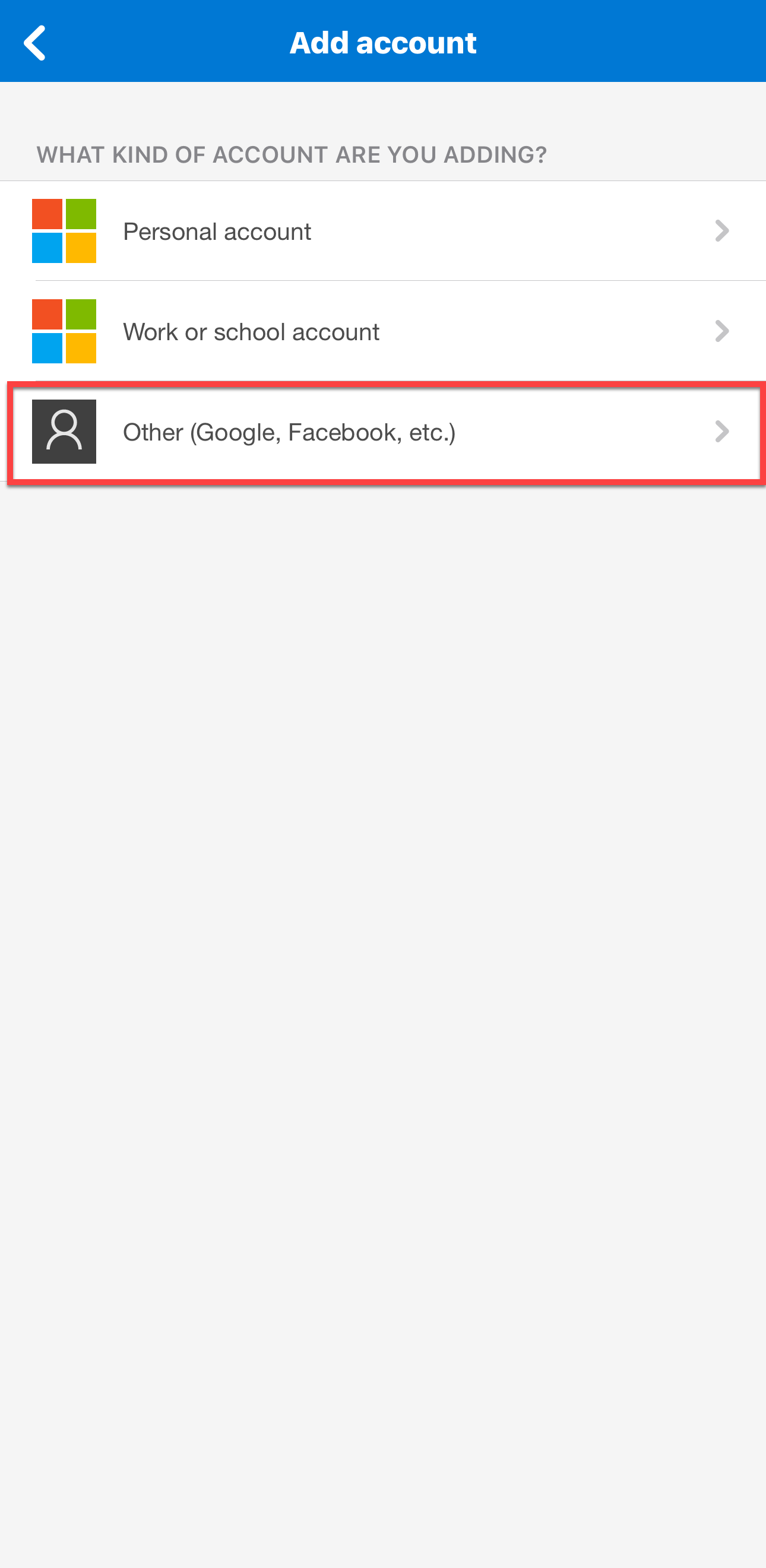
- Choose Scan a QR code.
- Allow camera access and scan the QR code displayed in DAT One.
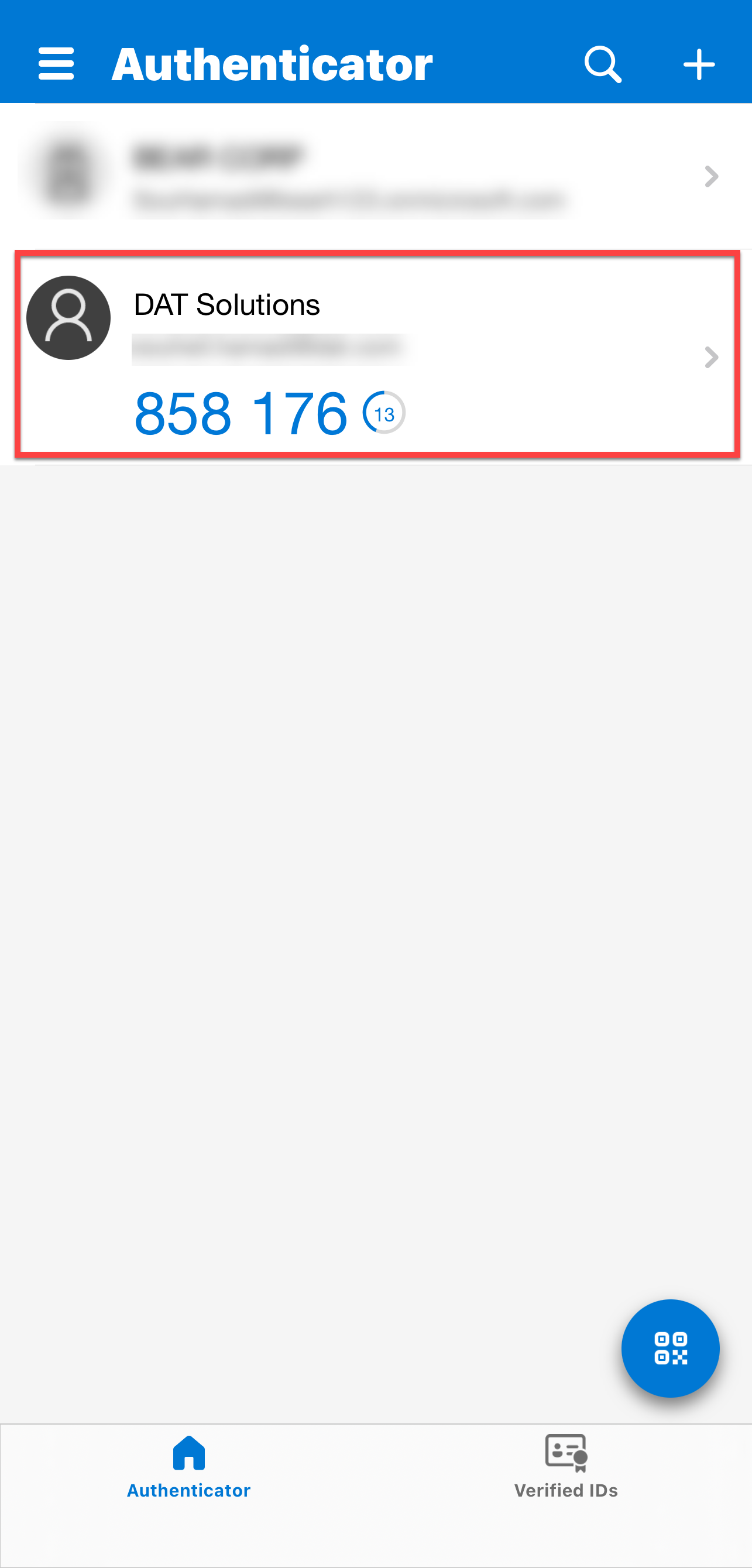
- A new entry labeled DAT Solutions will appear showing a 6-digit code.
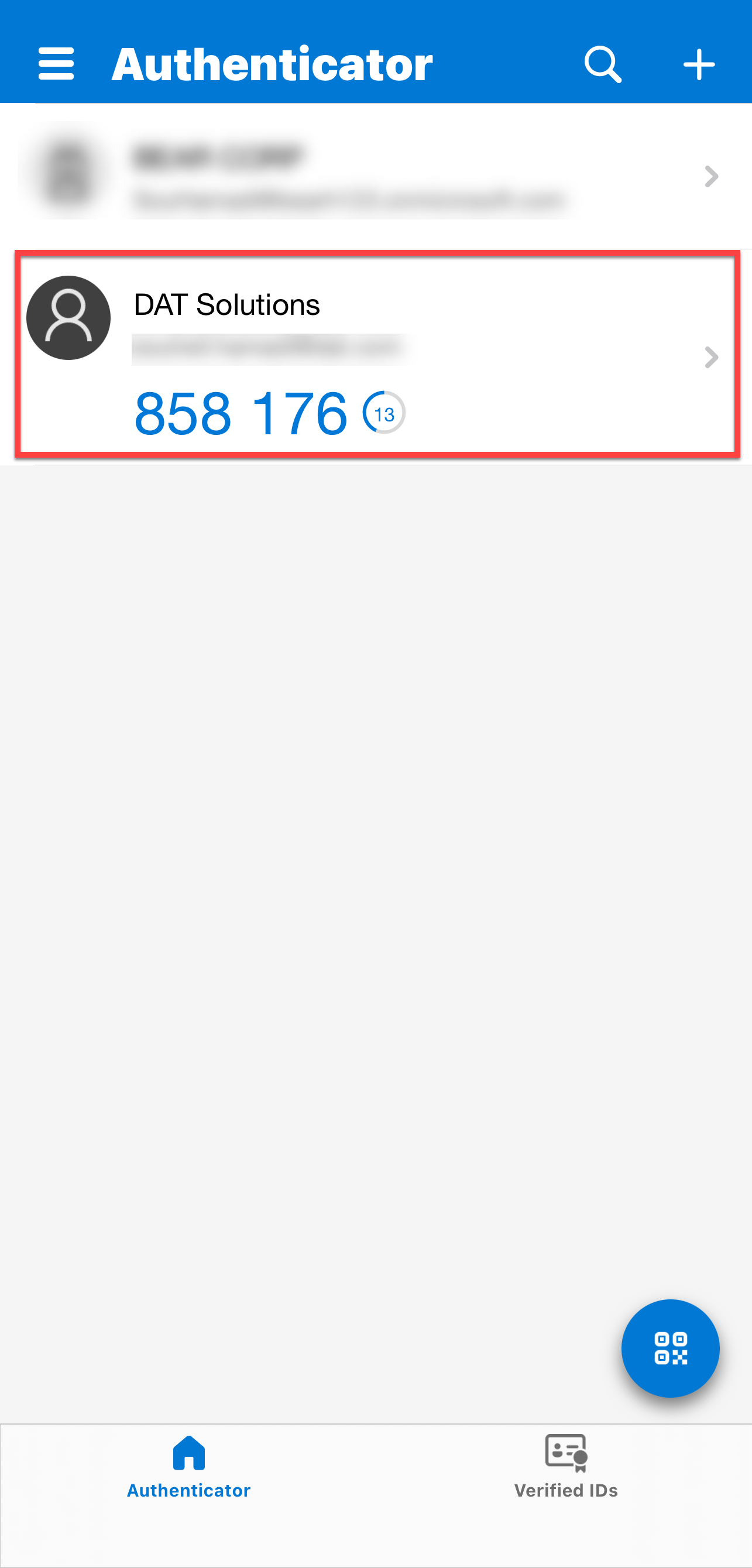
Option B – Enter the Setup Key Manually
If you cannot scan the QR code (for example, when setting up on the same phone):
- Select Trouble scanning? in DAT One.
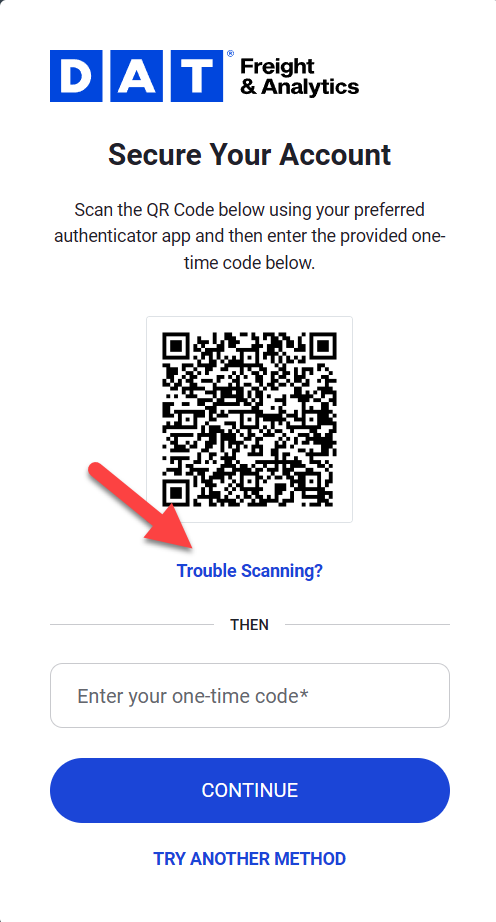
- Copy the setup key shown on the screen.
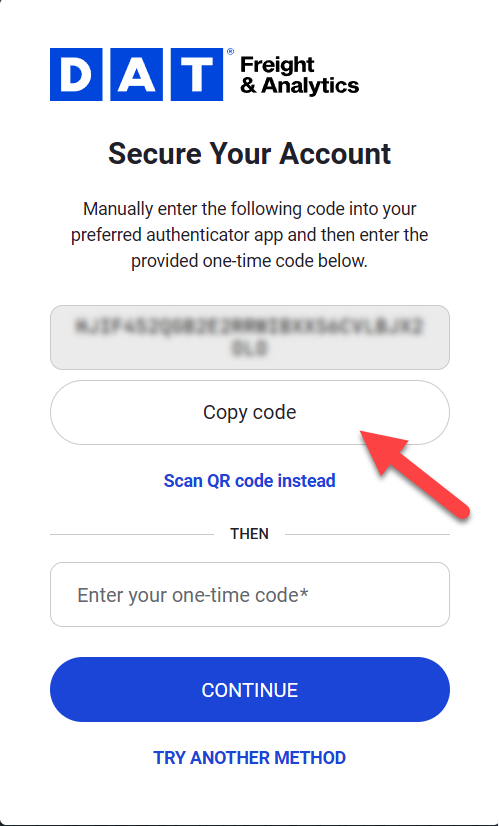
- Open Microsoft Authenticator and tap +.
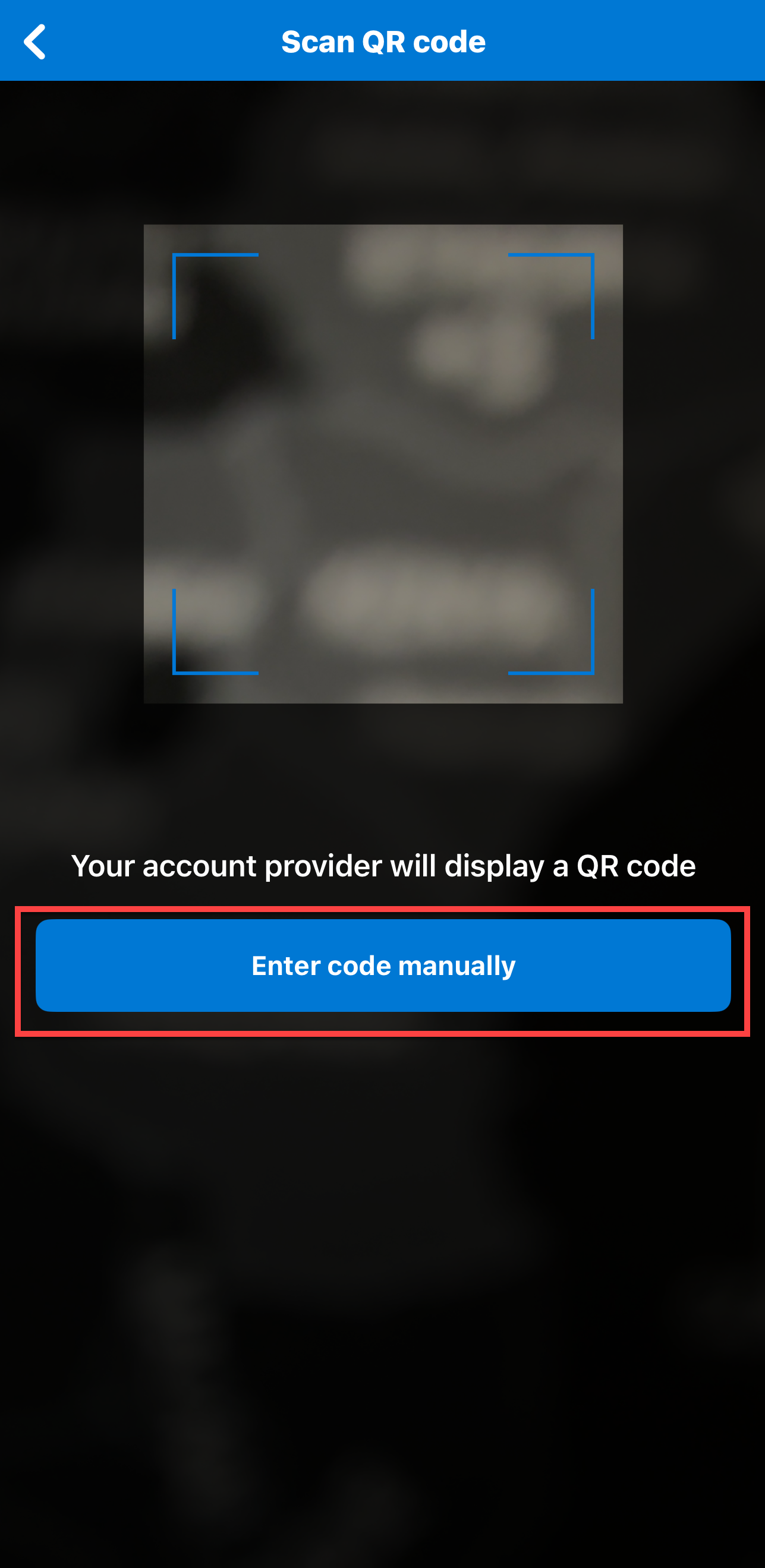
- Choose Other account → Enter code manually.
- Enter DAT One as the account name.
- Paste the setup key.
- Save to generate a 6-digit verification code.
- Enter the code in DAT One and click CONTINUE.
You will receive a recovery code. This code allows you to log in if you lose access to your authenticator app. Store it in a safe place. Each time you use a recovery code, a new one will be generated.
Step 3 – Logging In After Setup
After MFA is configured, each time you log in to DAT One Web or DAT One Mobile:
- Enter your email and password.
- Open the Microsoft Authenticator app.
- Locate the DAT One entry and note the 6-digit code.
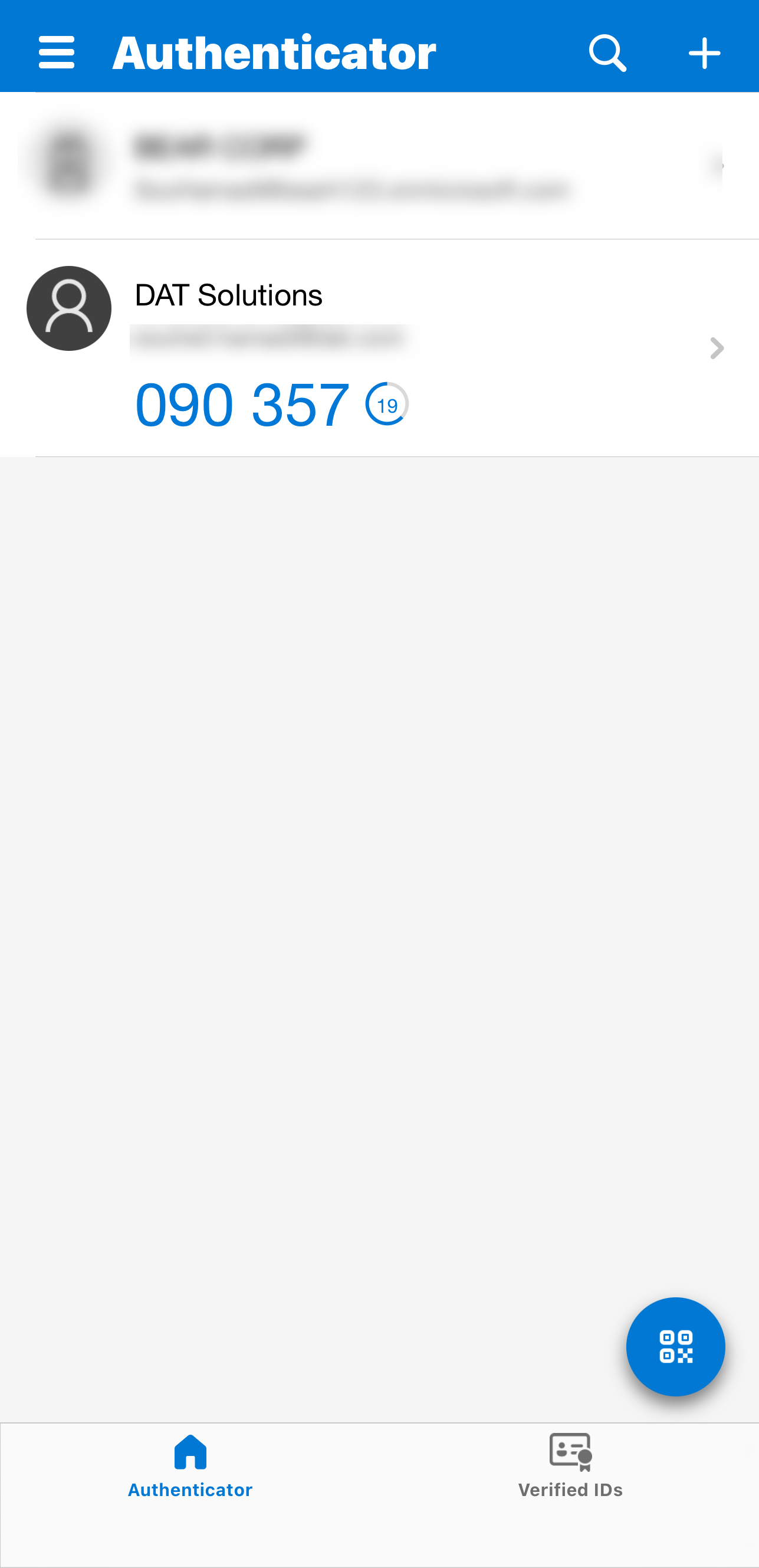
- Enter the code when prompted and click CONTINUE.
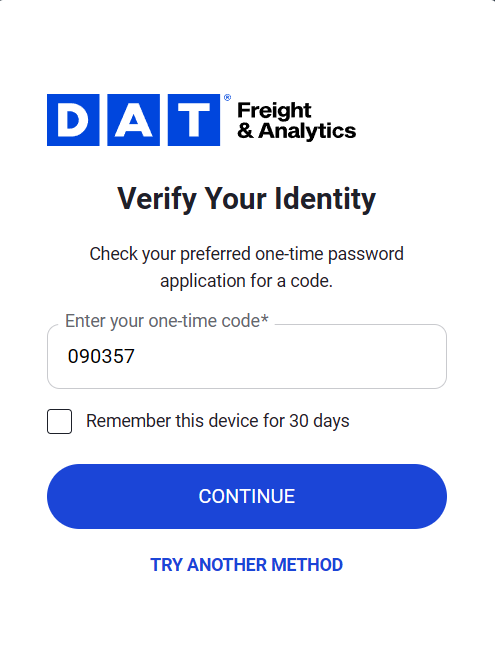
Tip: Select Remember this device for 30 days to reduce login prompts.